How do I set up the GM MDI 2 wireless connection?

Firstly offer the procedure on how to set GM MDI 2 wireless connection, then solution to GM MDI 2 software error “Not connected to MDI”.

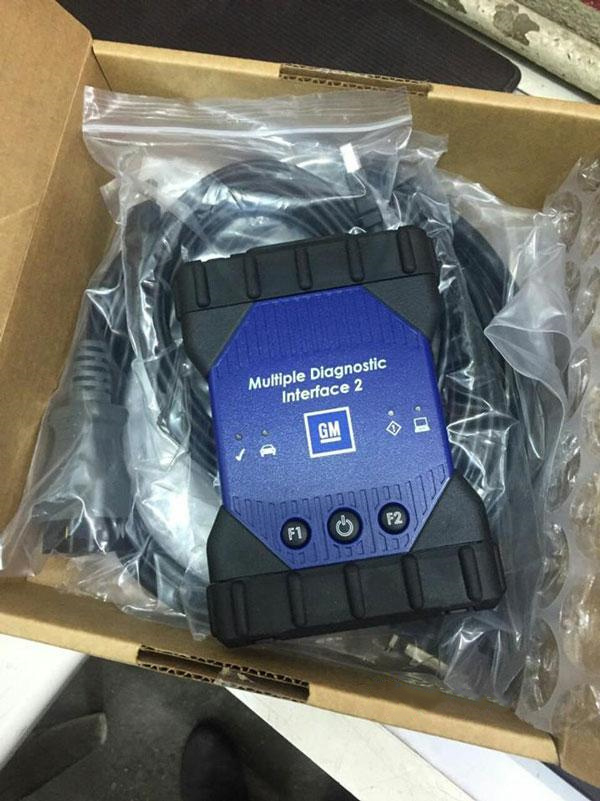
This is the GM MDI 2 hardware I have:

How do I set up the GM MDI 2 wireless connection-3

Part 1: How to set GM MDI 2 wireless connection:

Watch Youtube first:

What to do if MDI failed to connect on Wireless interface?

Check the wireless card is properly seated in the  WiFi GM MDI.

Confirm LEDs on the wireless card are lighted when the MDI is powered.

Verify the MDI and PC are within range of the Access Point or Router.

Verify that the PC is connected to the Access Point or Router.

Verify signal strength of the wireless network from the PC.

Check Firewall Settings on your PC

USB connection takes precedence, unplug USB cable.

Wired Ethernet connection takes precedence, unplug Ethernet cable.

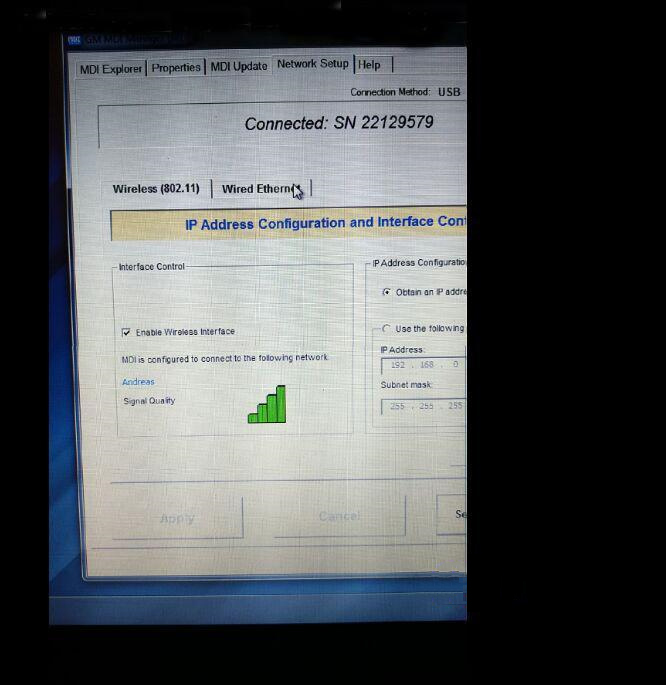
Connect to MDI using USB and run MDI Manager to verify the Wireless Settings are

configured correctly.

o Wireless interface is enabled.

o AP settings configured for proper security (authentication, encryption).

o Signal Quality (fair, good, excellent) indicates connected to AP.

o The MDI, PC and AP are on the same subnet

o If using static IP, verify the IP Address and Subnet mask are correct (supplied by network

administrator.

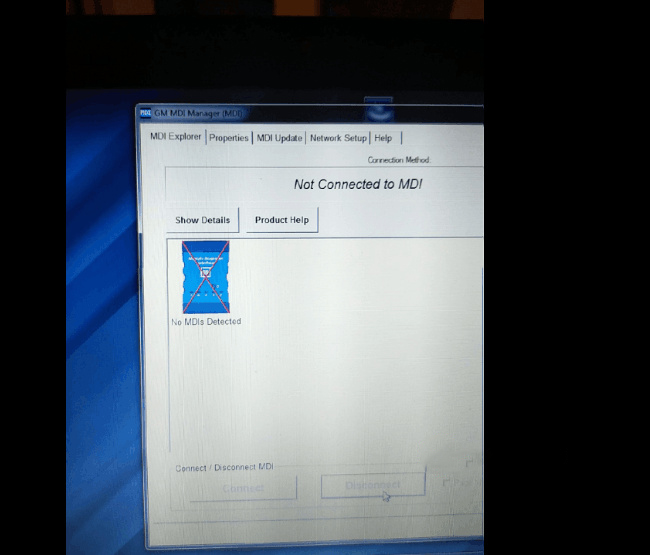
Part 2: GM MDI “Not connected to MDI” solution

All what you need do is to refresh the GM MDI firmware.

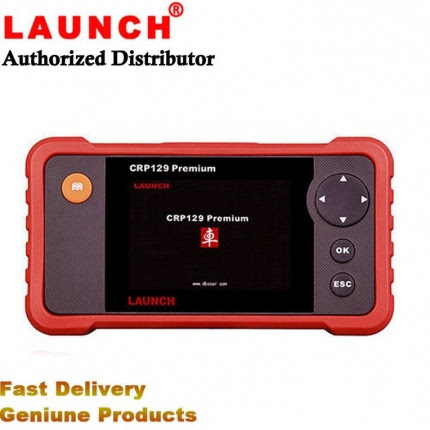
LAUNCH Creader CRP129 Premium Code Reader Scan Tool OBD2 Engine ABS SRS EPB SAS

LAUNCH Creader CRP129 Premium Code Reader Scan Tool OBD2 Engine ABS SRS EPB SAS

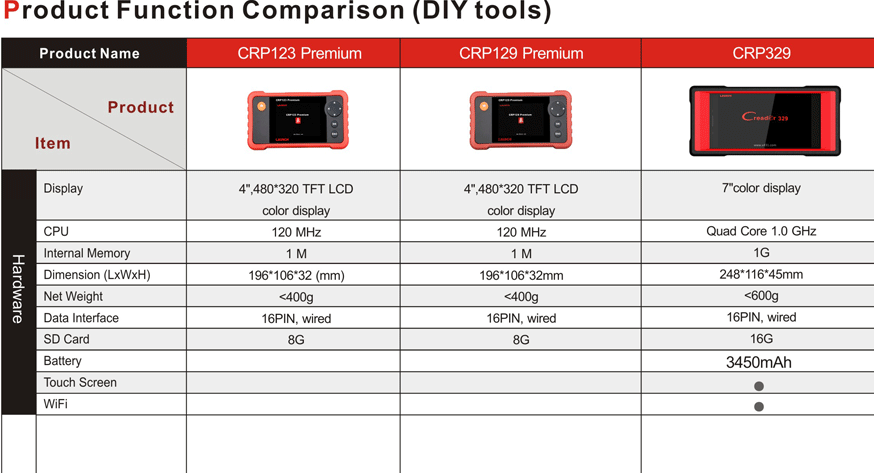
Comparation with previous version CRP129
1.Bigger screen, better views of graphs and more, upgraded from 3.5″ to 4″
2.Bigger memory, faster, better, upgraded from 1GB to 8GB
3.Upgraded hardware, add handle, bigger buttons, improved irreconcilability, much easier to operation.
4.Add more vehicle models as followings: Mahindra,Maruti,Suzuki,Tata,Fiat(Brazil),HOLDEN

Languages: English, Spanish, French, German, Italian, Russian and Polski.
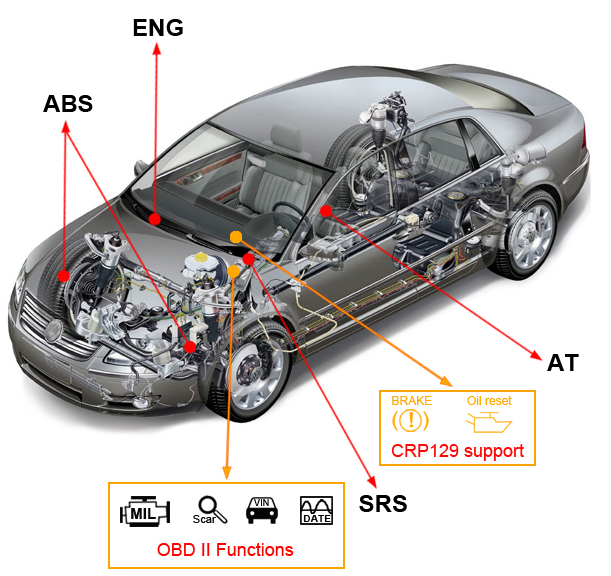
It supports all of the 10 modes of OBD II test and is able to diagnose the 4 main systems of worldwide main stream models Engine,Transmission ABS and Airbag(SRS), which helps automobile repair professionals dianose and repair vehicles more efficiently,accurately and profitably.
In addition,the CRP129 Premium also supports Electronic Parking Brake (EPB) release,Steering Angle Sensor(SAS) and Oil Servide Light resets etc.
More new systems and functions will be available frequently .
Electronic Parking Brake (EPB) release . Steering Angle Reset. Oil Service Reset. ABS& Airbag(SRS) System.Transmission & More
Works with all vehicles compliant with EOBD/OBDII (most vehicles after 1996).
Go resets special functions, go for CRP129 Premium. It’s a marked improvement of its predecessor, as well as being the world’s first DIY diagnosis product with fully integrated OBDII, Car Model Diagnosis and Engine Oil Lamp Reset.
It also has the ability to record, retain and playback hours of diagnostic data, allowing you to re-examine the date you have collected at a later stage as well as compare the correlated information of multiple instances.
The I/M readiness test shows whether the various emissions-related systems on the vehicle are operating properly and are ready for Inspection and maintenance testing.

Functions of the CRP129 Premium include:
1.MIL Indicator
2.Multiple car models (Over 40 prevalent models from Asia, America & Europe)
3.Record, save and playback up to 8 hours of live data
4.I/M readiness test
5.Enhanced data stream for ABS, SRS, transmission & engine.
6.Malfunction lamp status
7.Read vehicle information (VIN, CIN and CVN)
8.O2 (Lambda) sensor test
9.Auto-vehicle ID, Auto Module Search & ultra-fast protocol ID
10.EVAP system test
11.View live diagnostic data in graph or data format
12.View multiple data streams at the same time
13.View freeze frame data
14.Read current, pending and permanent DTC’s
15.Clear DTC’s
16.Support DTCs help, data stream wave display,
17.Internet updateable
18.Enhanced help function
19.Print data via PC
20.RESET BRAKE (EPB)
21.RESET OIL LAMP
22.RESET SAS (Steering Angle Reset)
23.RESET BMS (Battery Management System)

Support Vehicle:
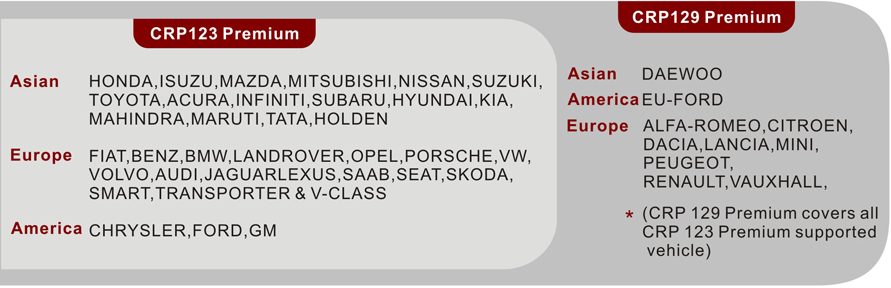
Asia car models:Suzuki, Honda, Mitsubishi, Nissan, Toyota, Mazda, Daweoo, Hyundai, Kia, Subaru, Infiniti, Lexus, Accura ,Isuzu, Daihatsu, Mahindra,maruti,Tata,
USA car models:Ford, EU-Ford, GM, Chrysler,Fiat(Brazil)
EUROPEAN car models:Mini, Vauxhall, Dacia, Alfa-Romeo, Lancia, Peugeot, Renault, Citroen, Benz, BMW, VW, Opel, Volvo, Fiat, Landrover, Porsche, Seat, Skoda, Audi, Saab, Sprinter, Jaguar
AUSTFORD:HOLDEN

Specification:
1.4” TFT LCD True Color Screen
2.Input voltage range 9-18V
3.Standard 16 Pin OBD interface
4.Connection: Standard 16PIN OBD Diagnostic Interface
5.Dimensions: 7.7” x 4.17” x 1.25” (L x W x H)
6.Language options: English, Spanish, French.
7.Weight: <400g

The CReader Professional 129P is both flexible and practical, making it a must have diagnosis tool for any and all car enthusiasts.
This product comes with an access to valuable software updates which are released by Launch over the internet.

Warranty:
One year standard warranty.

Package List:
1pc x Launch X431 Crp129 premium code reader
1pc x OBDII cable
1pc x USB Cable
1pc x USB Sticker
1pc x Carrying box
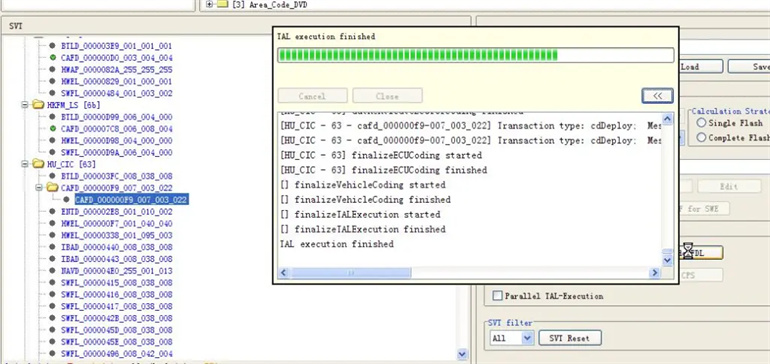
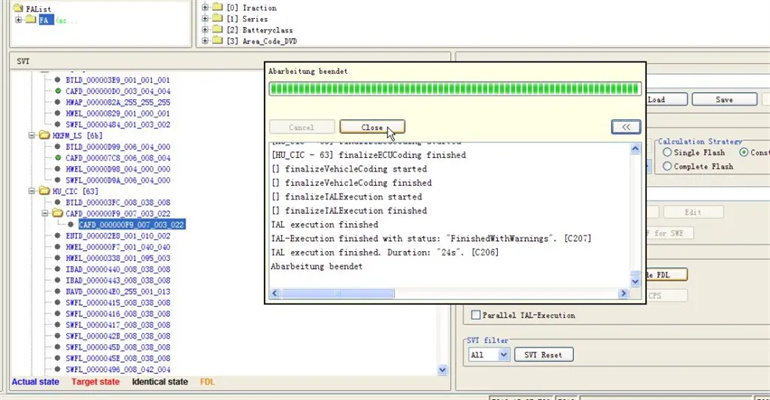
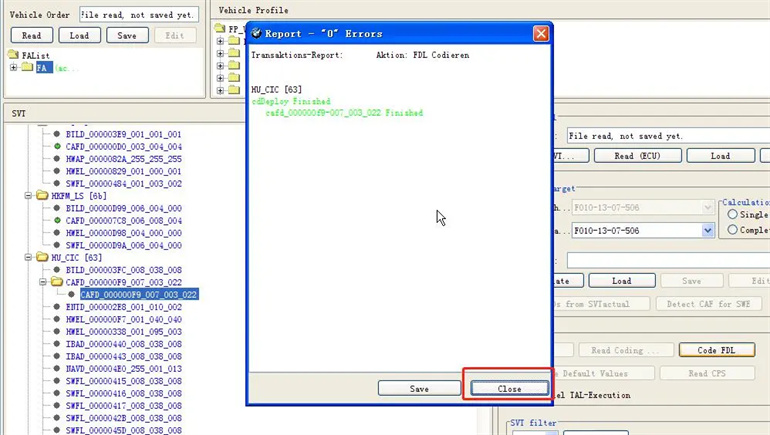
How to enable driving to watch DVD videos on BMW F10F18? Step by step guide

How to enable driving to watch DVD videos on BMW F10F18? Step by step guide.

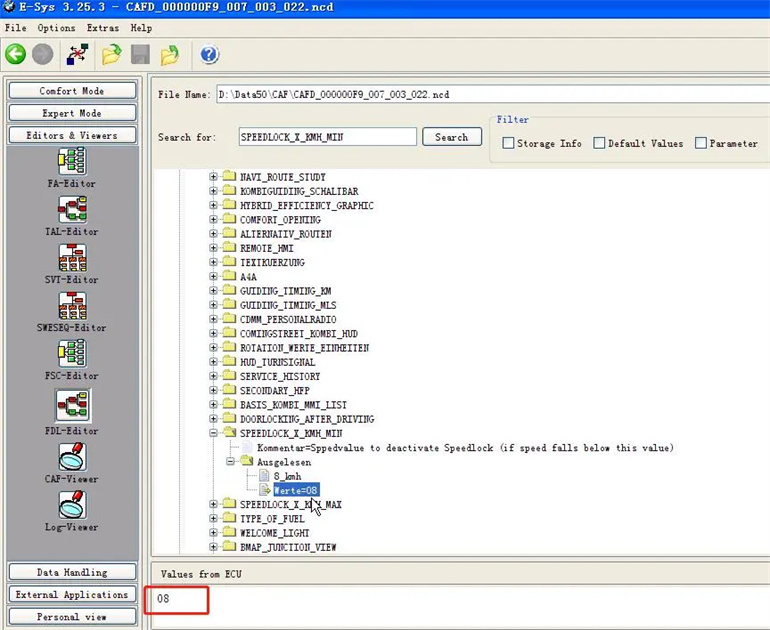
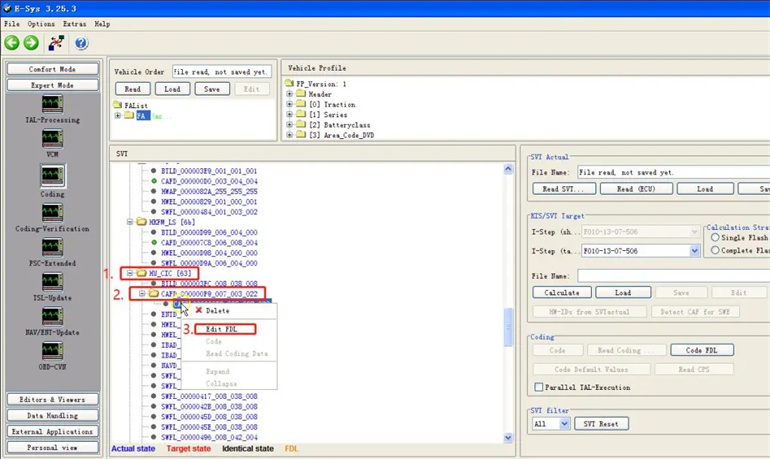
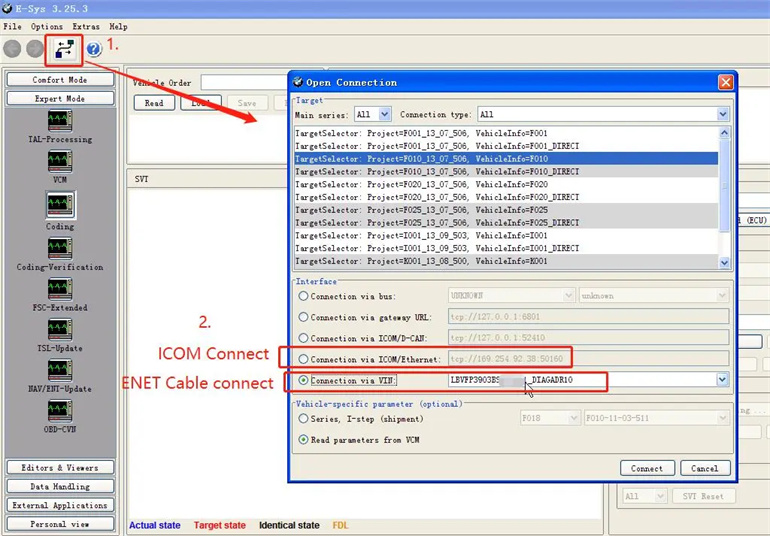
1.Connect to e-sys(you can use ENET cable/ENET WIFI/ICOM NEXT to connect BMW car)

How to enable driving to watch DVD videos on BMW F10F18 Step by step guide-1

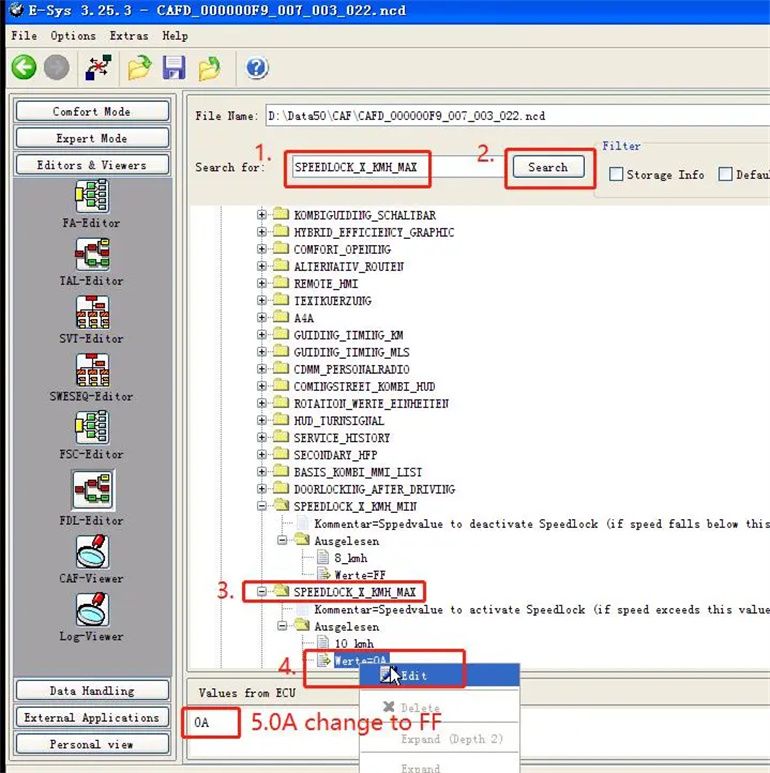
2. Select HU_CIC/HU_NBT,read FDL and Edit FDL;

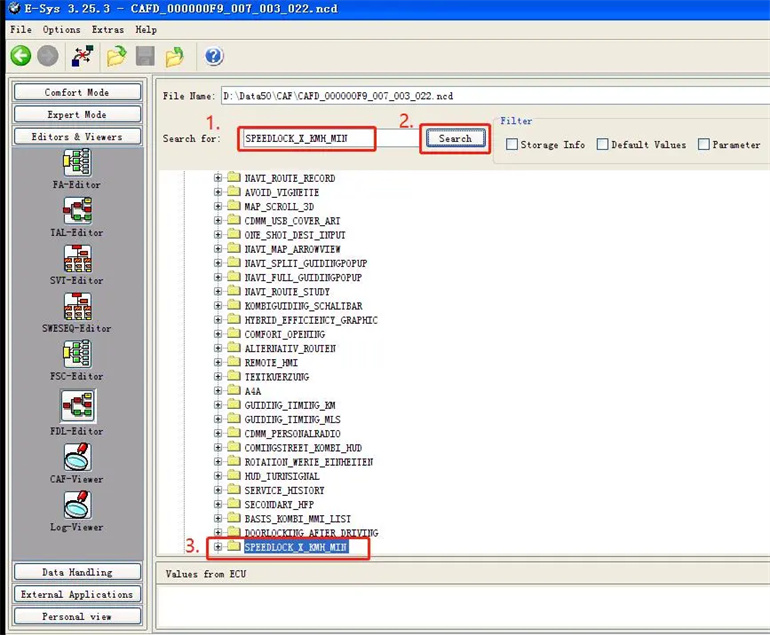
3. Search SPEEDLOCK_X_KMH_MIN;

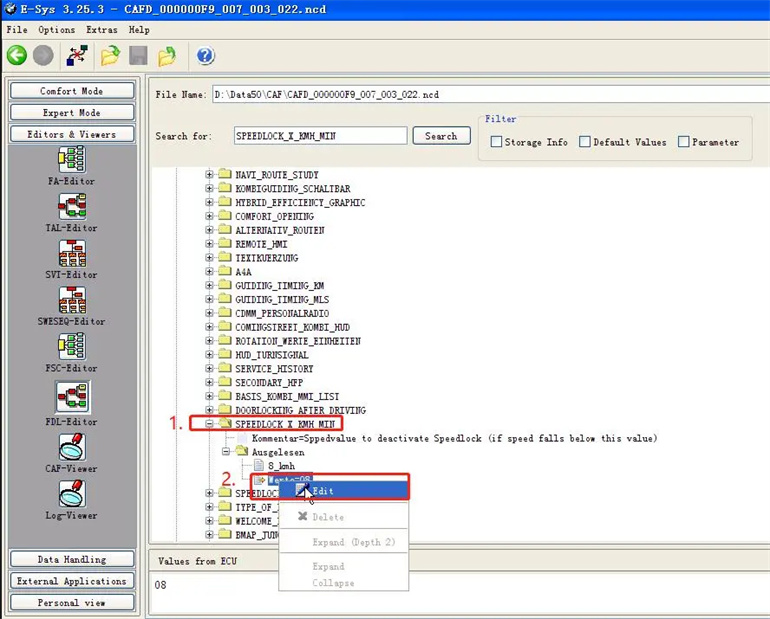
4.Edit 08

How to enable driving to watch DVD videos on BMW F10F18 Step by step guide-5

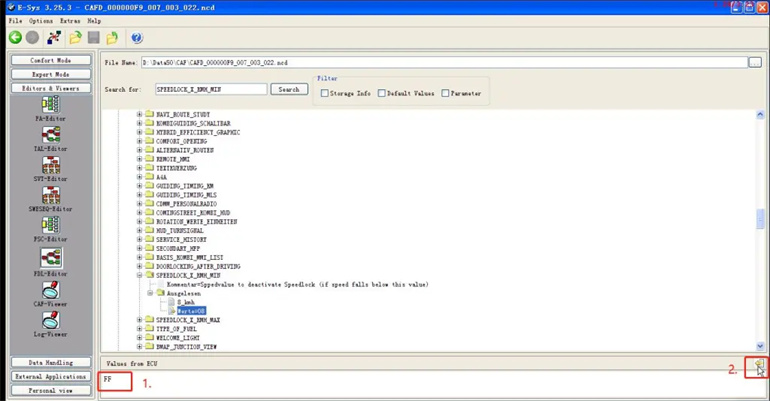
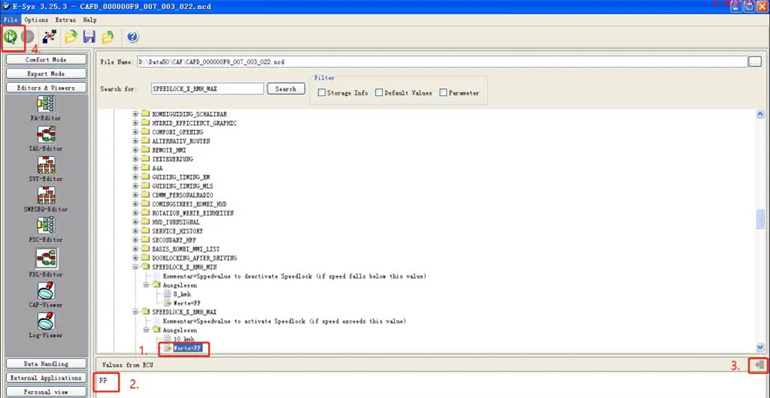
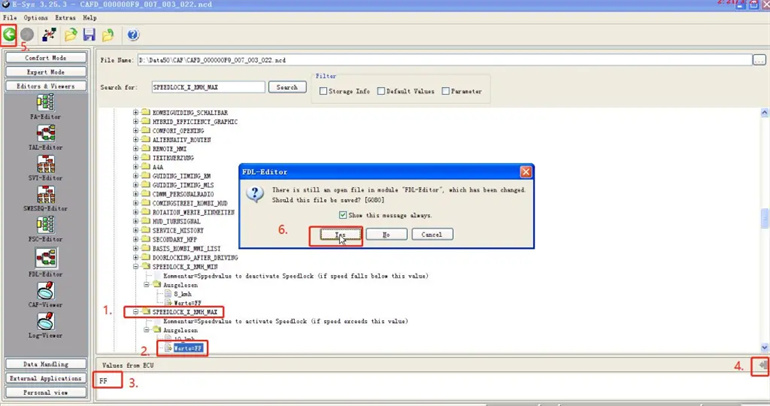
5.08 changed to FF;

6. Search SPEEDLOCK_X_KMH_MAX;

7.0A change to FF;

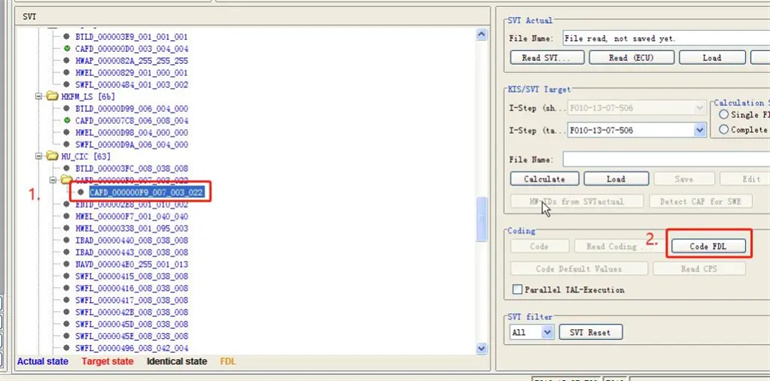
8.Select HU_CIC/HU_NBT CAFD_XXX,Code FDL;

9.FDL code finished,close windows.

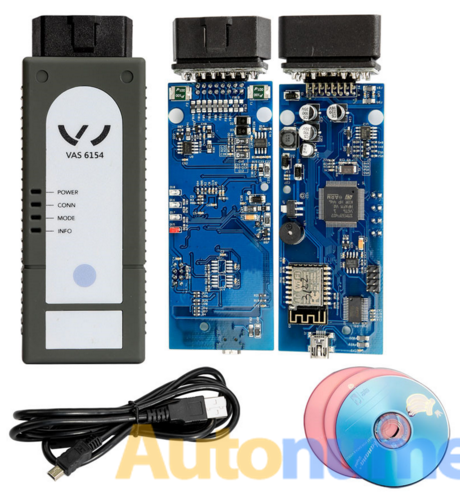
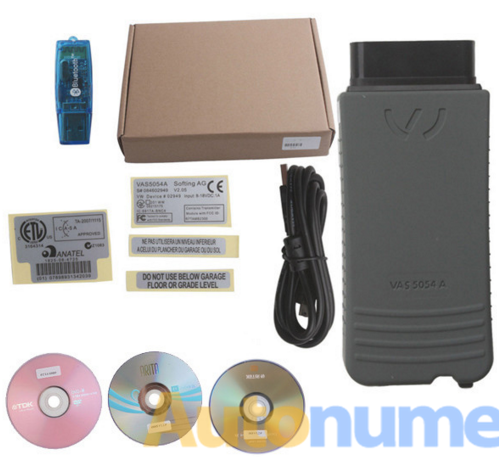
VAS 6154 wifi Vag Diagnostic Tool VS VAS 5054A Which one is better?

VAS 6154 WIFI is the latest VAG diagnose interface for audi , vw , skoda , seat . VAS 5054A is the old VAG diagnose tool. VAS 6154 is the Latest diagnostic and programming interface for the applications VAG ODIS-S (Service) and ODIS-E (Engineering) which replace the VAS 5054A , cover all the functions of VAS 5054A.

What is the difference between VAS 6154 and VAS 5054A ?

The different:
1. Connection method:
VAS6154A: connected via USB, WIFI
VAS5054A: connected via USB, Bluetooth
2. Vehicle list:
VAS 6154 supports VW, Audi, Skoda vehicles from 2000 year to the newest & future car models;
VAS 5054A supports VW, Audi, Seat, Skoda, Bently, Lamborghini.
3. Software compatible:
VAS-PC V19: VAS 6154 software CANNOT support it! use vas-pc v19 with VAS 5054A
ODIS: VAS 6154 only works with ODIS 3.0.3 or newer; VAS 5054A can work with odis new or old
4. Remote programming:
As for remote programming through VAS-PC software, you have to use VAS 5054A or VAS 5055 head.

The VAS 6154 cloned head only works with obdii diagnostics and online programming.

VAS 6154 clone and VAS 5054A china clone share the same features:

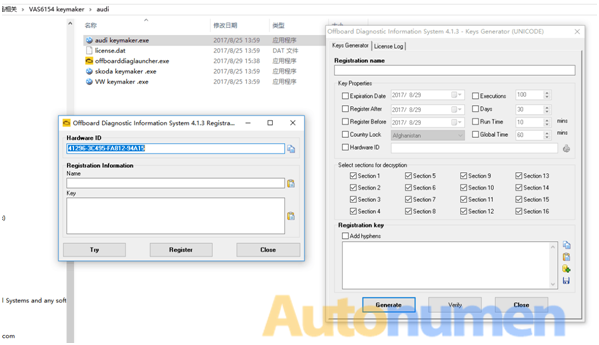
Both working with ODIS service 4.1.3 software crack:

ODIS 4.1.3 with ODIS 6.75 Engineer Version with ETKA 7.5 Plus Elsawin 6.0
– Estimated remaining times are shown for ECU flash operations.
– Diagnostic protocol contains interruptions of GFF sessions, extended measurement values, improved ECU communication view,
used diagnostic hardware, connection type of diagnostic hardware, operating system, the hotfix used and submissions of support requests
– The measured value display has been improved.
– Documents in GFF are displayed in separate windows.
– One message box will be shown at the beginning of the test drive mode.
– GFF hotfixes can be integrated during diagnostic sessions.
– Danger messages have been revised.
– Stopping of diagnostic sessions may be interrupted.
– Automatic deletion of autosave diagnostic protocols after successful transmission.
– Selection of PassThru diagnostic hardware has been improved.
– ODIS Service Software update has been stabilized

For more detail information about how to activation vas 6154 software, please contact our sales – service@autonumen.com
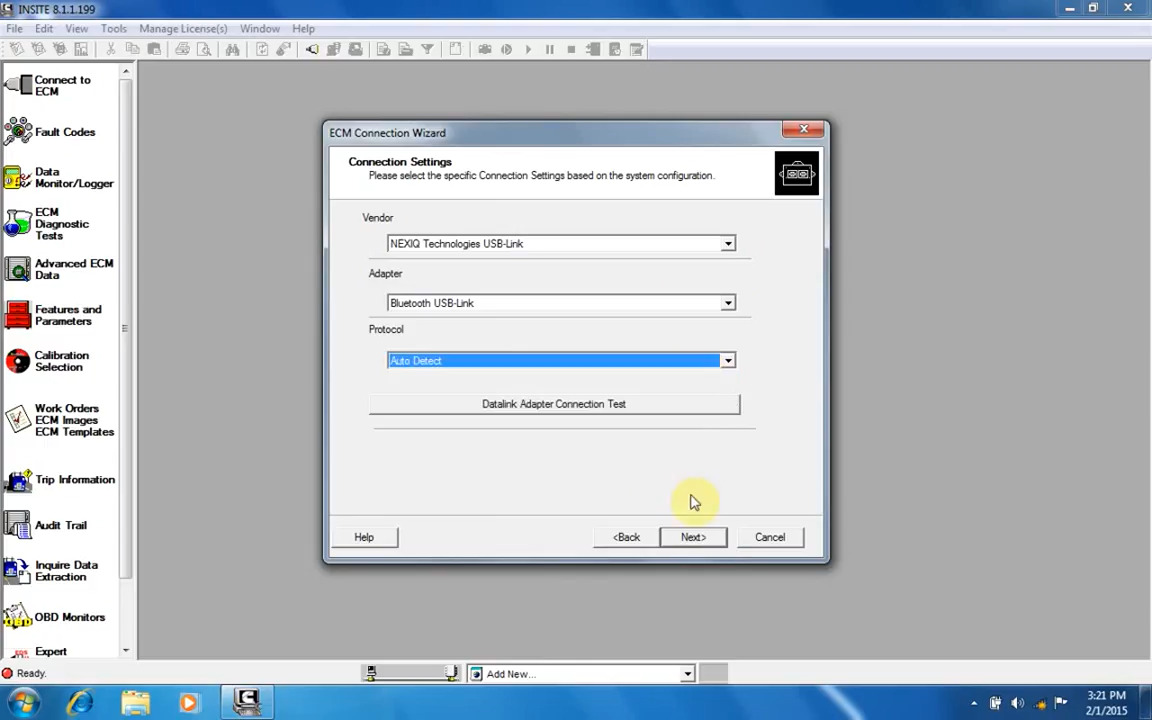
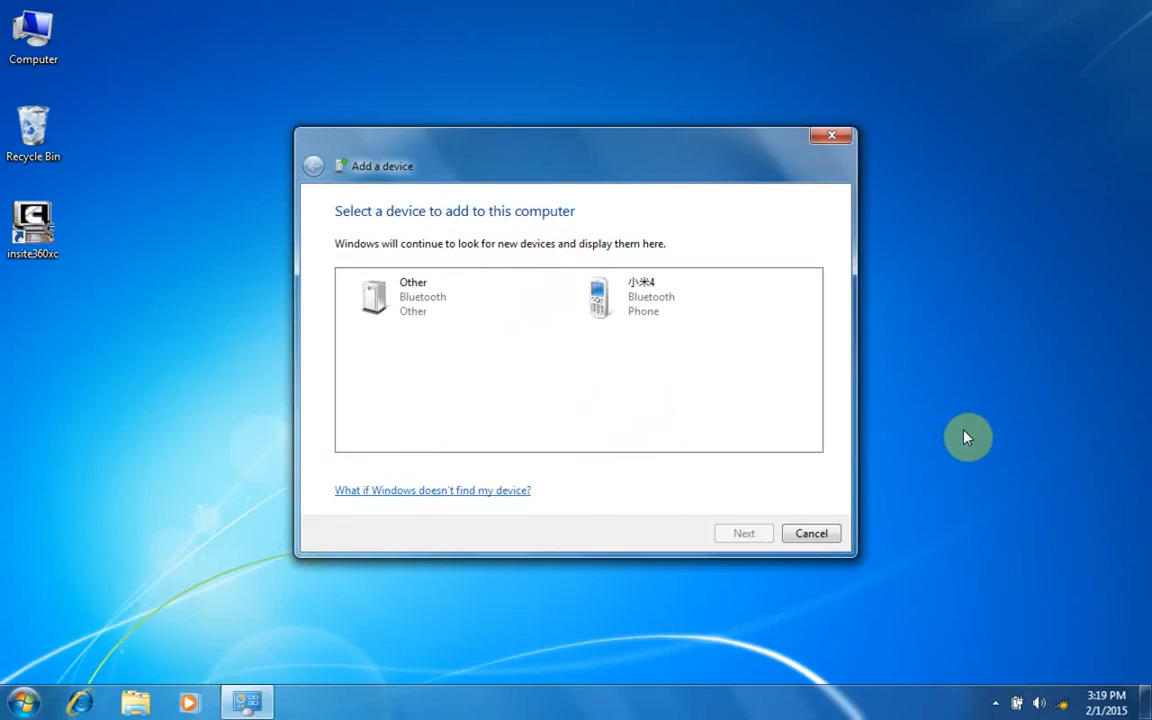
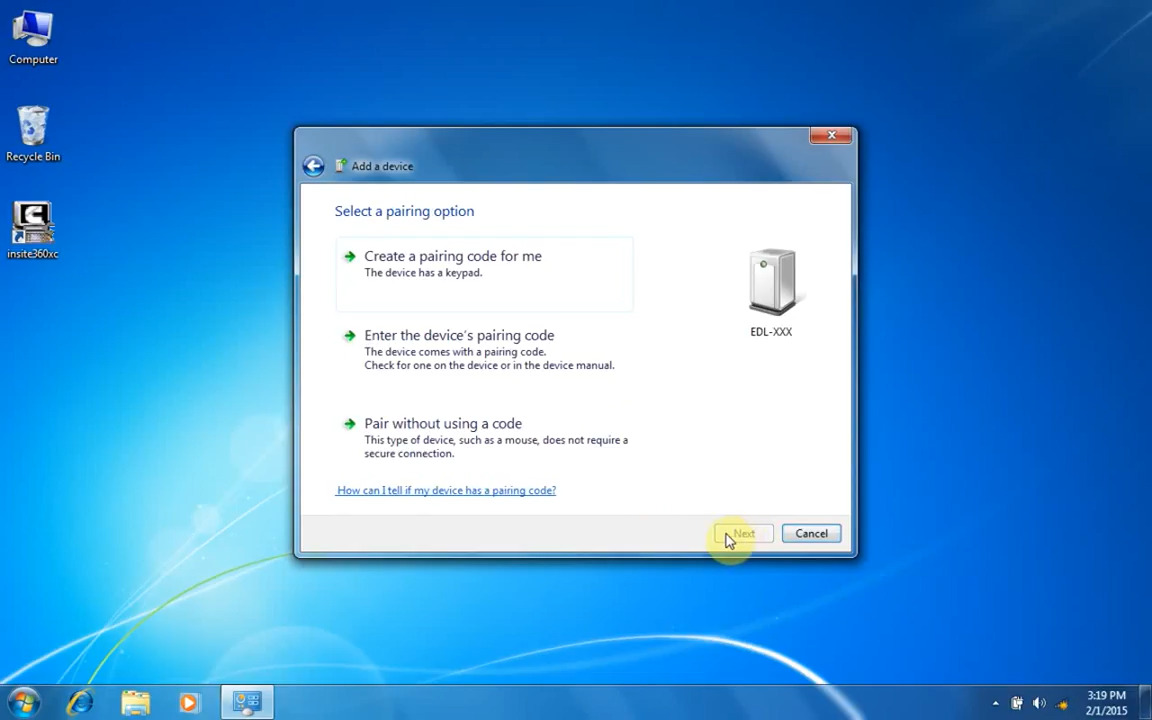
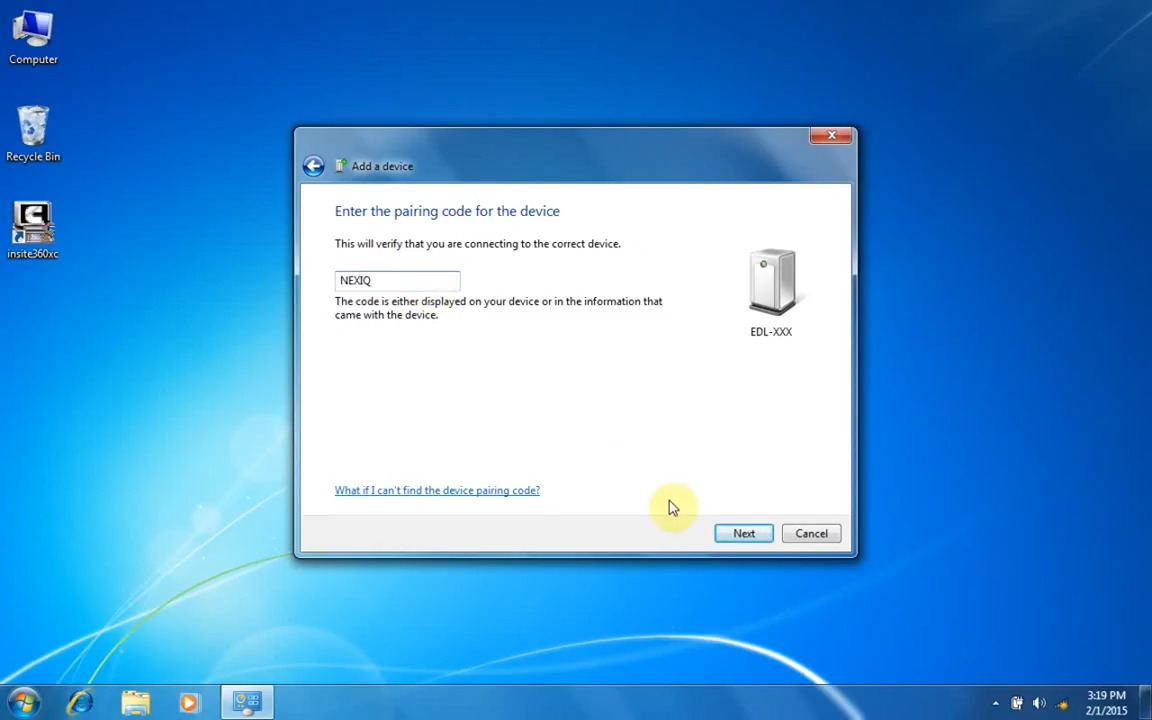
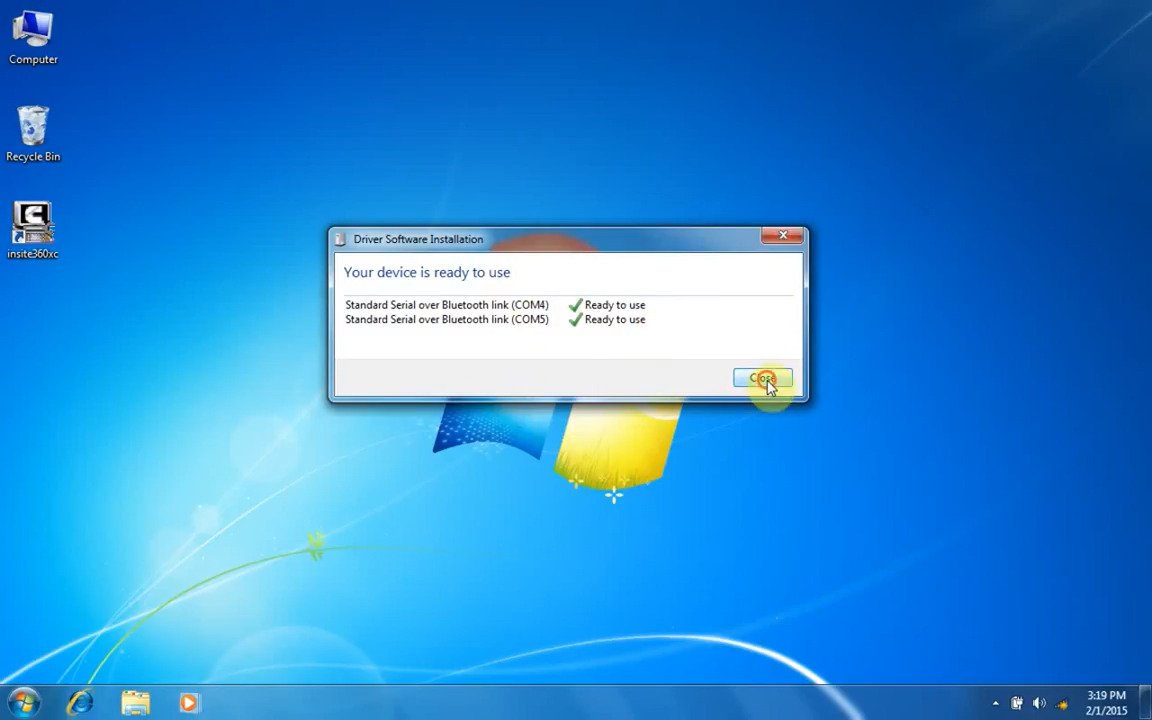
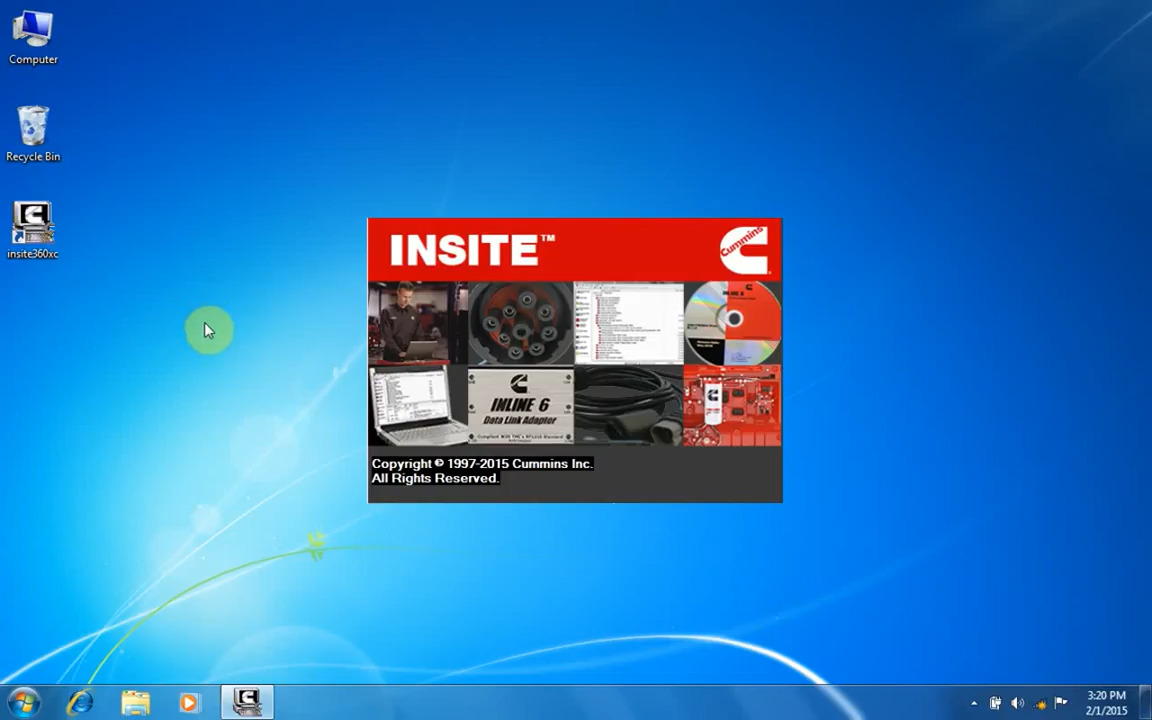
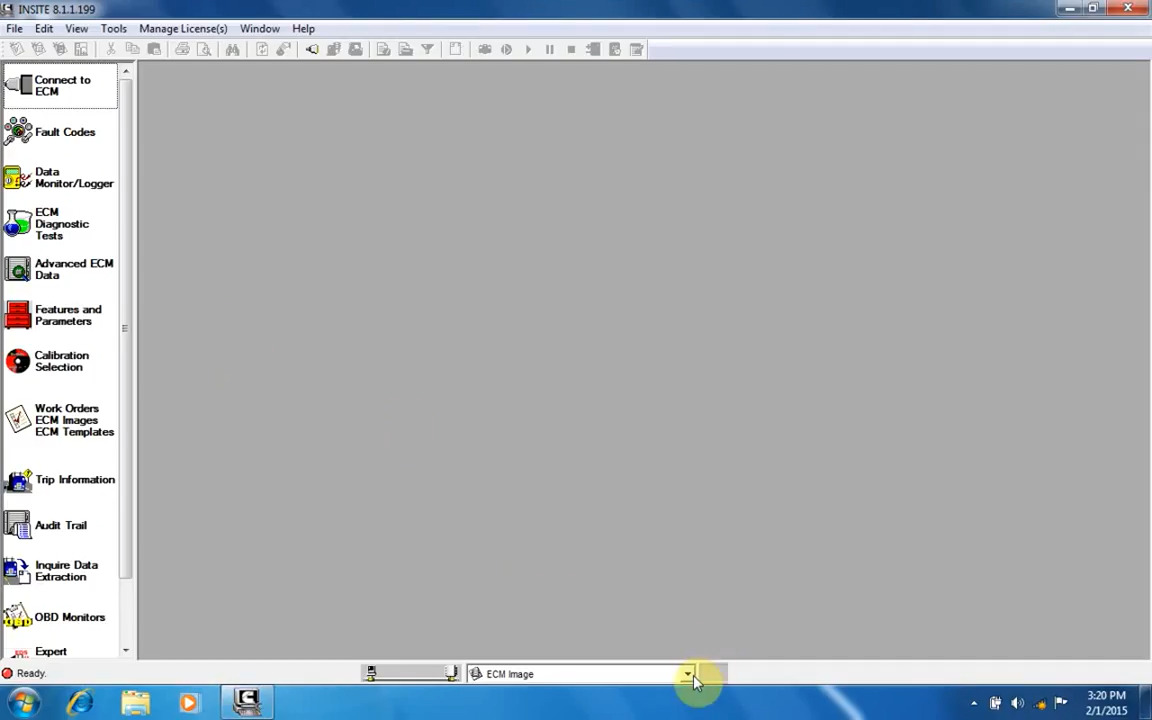
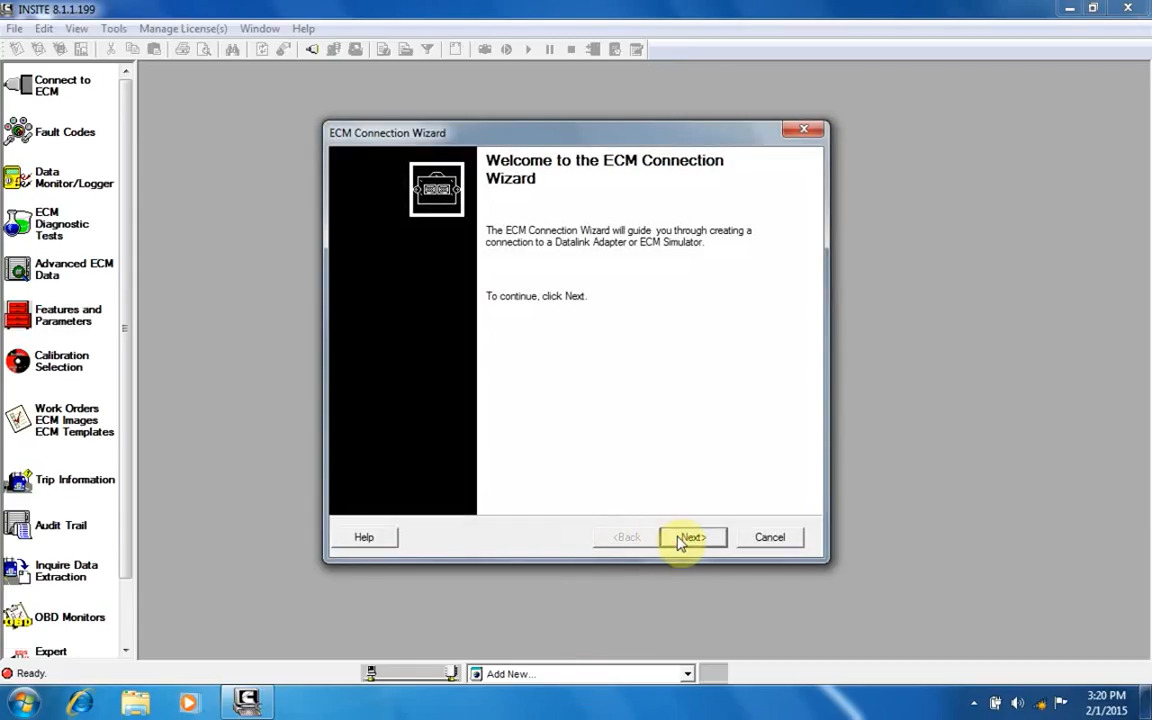
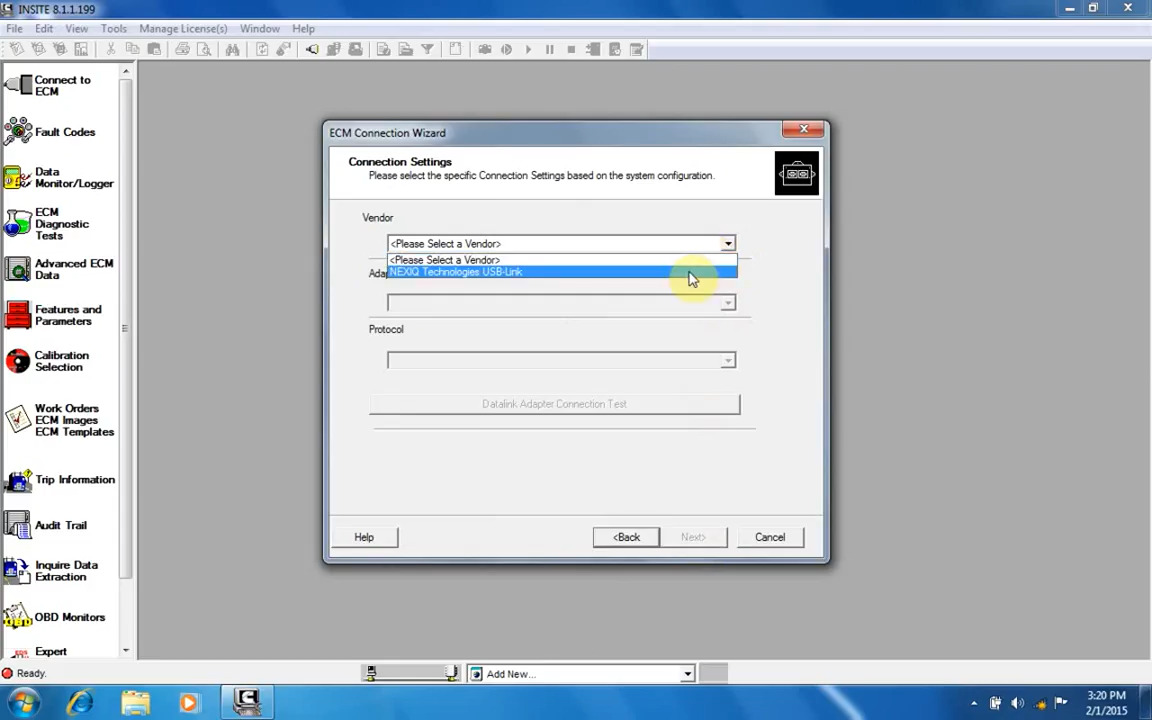
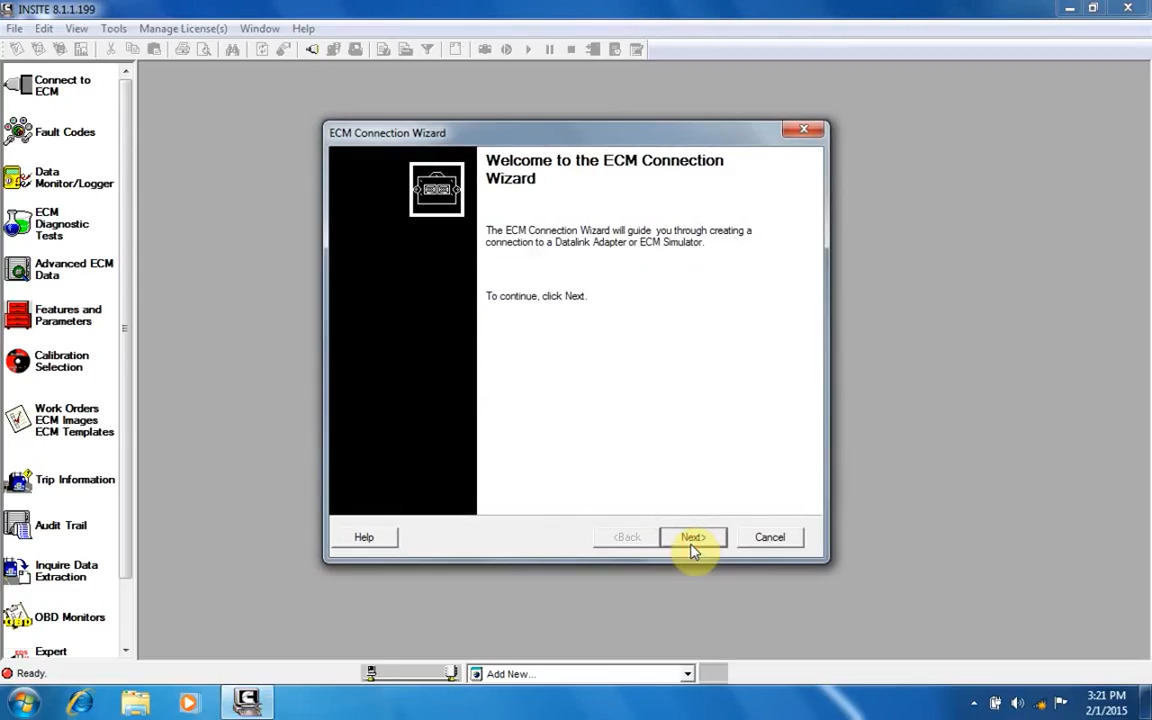
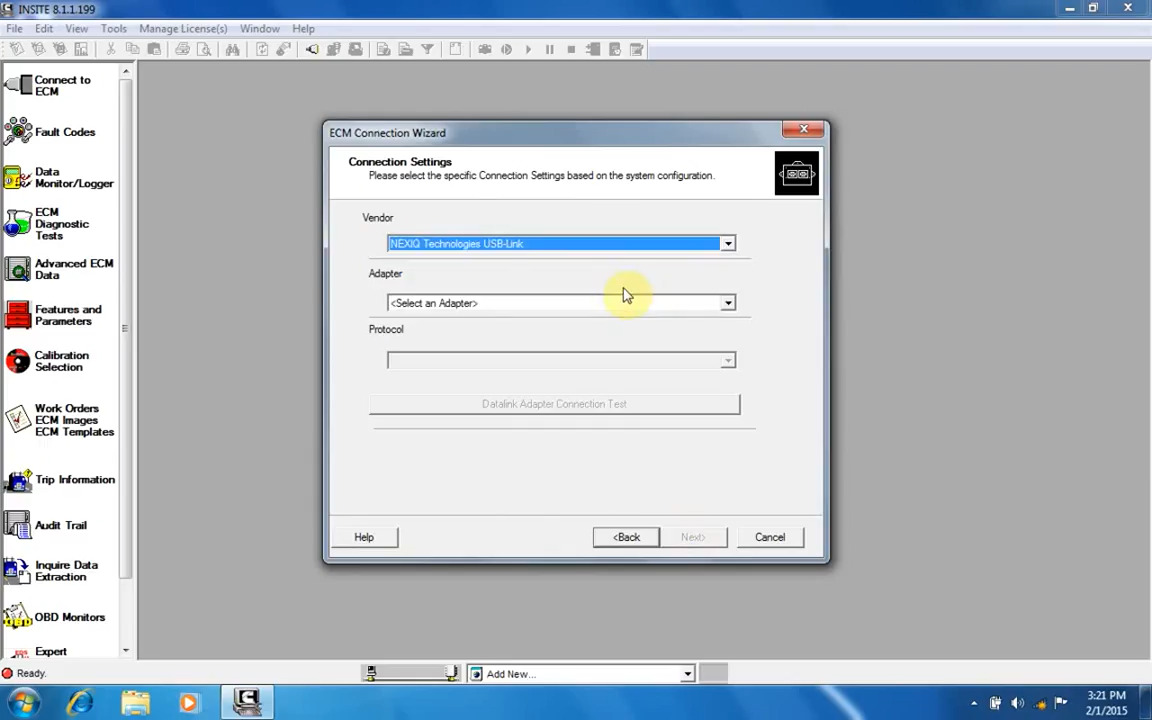
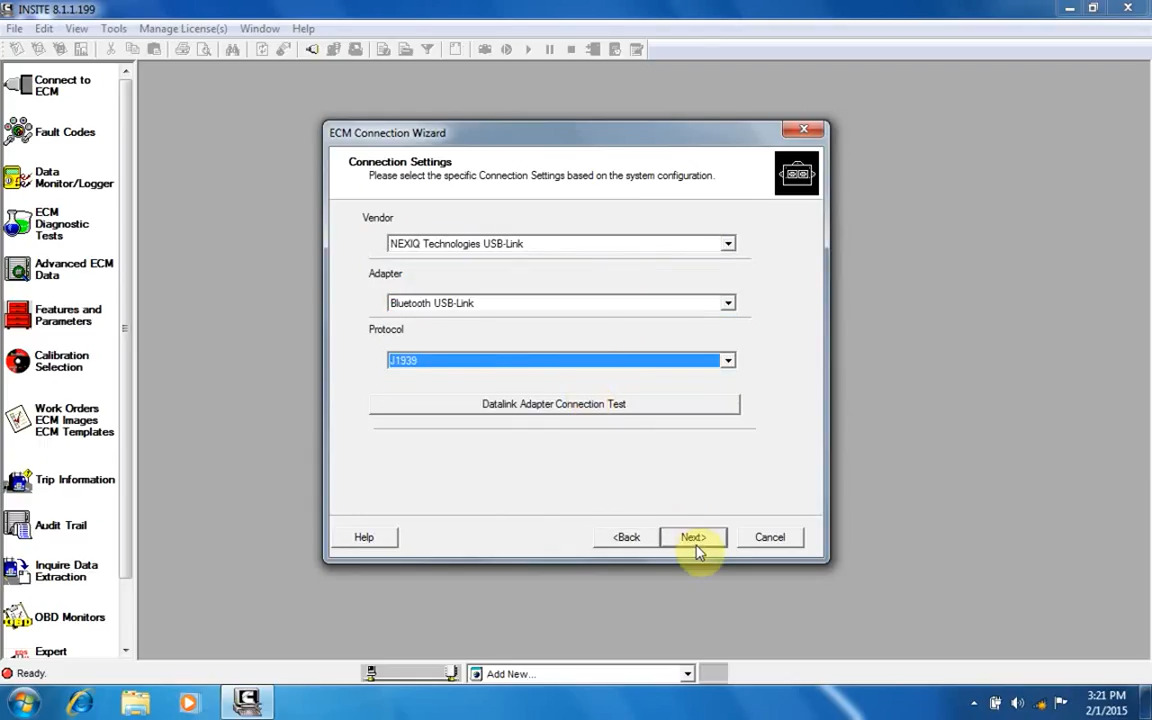
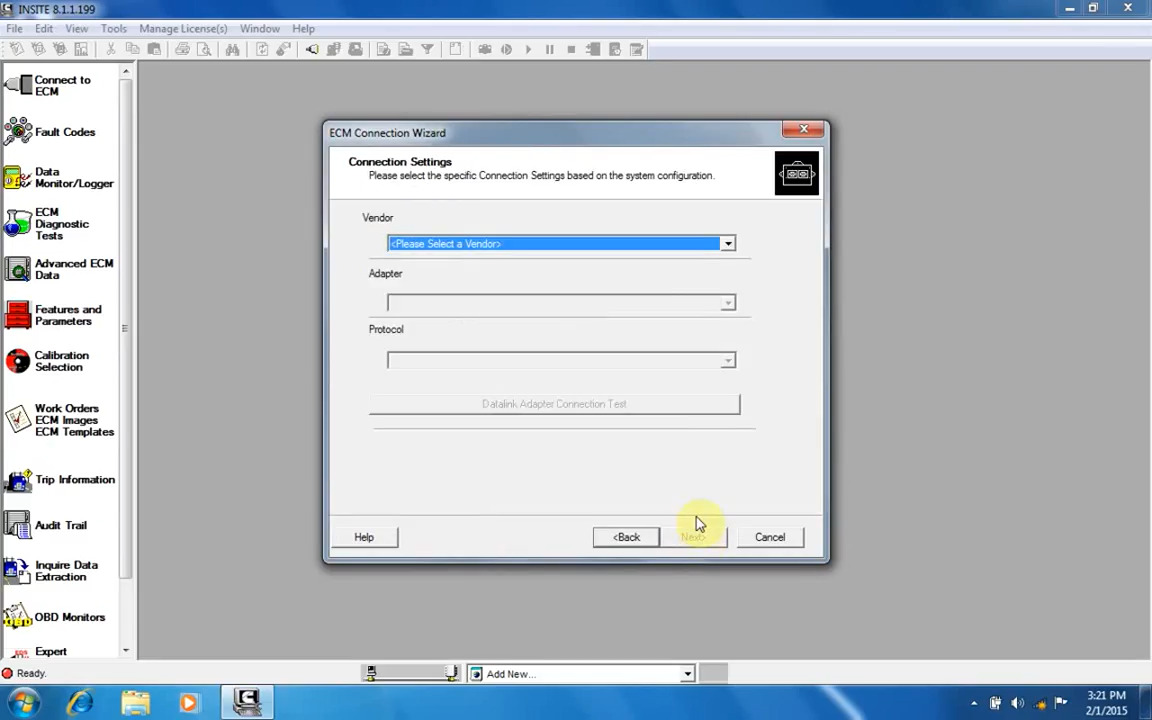
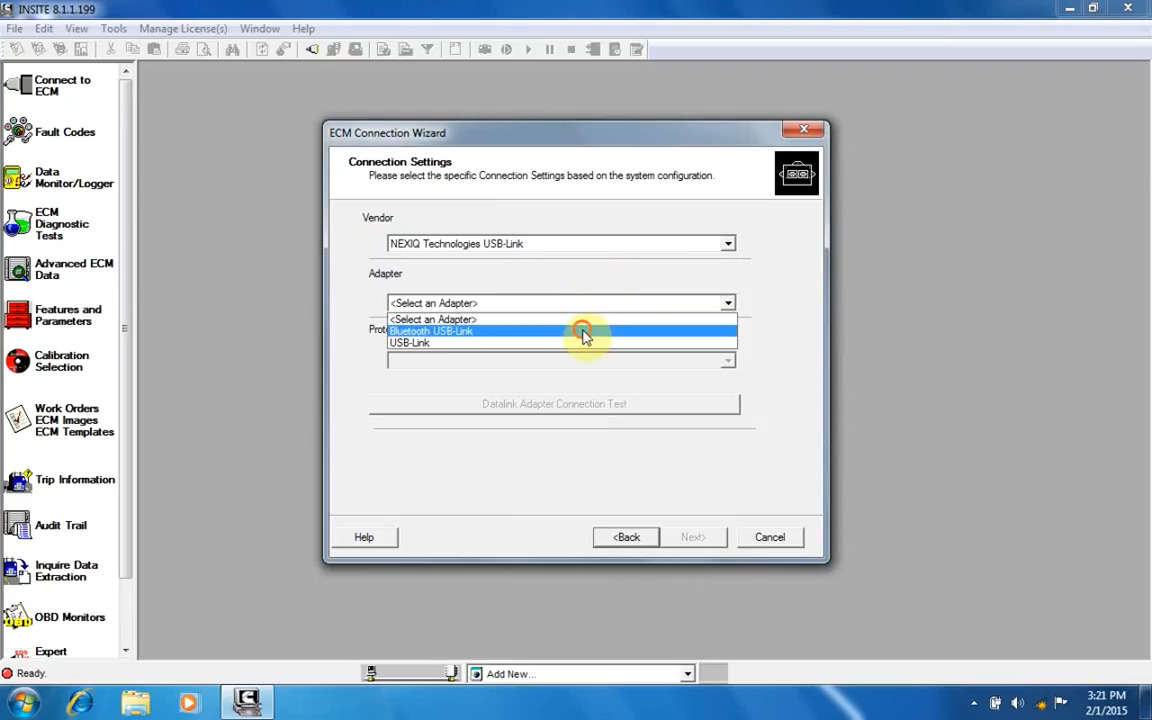
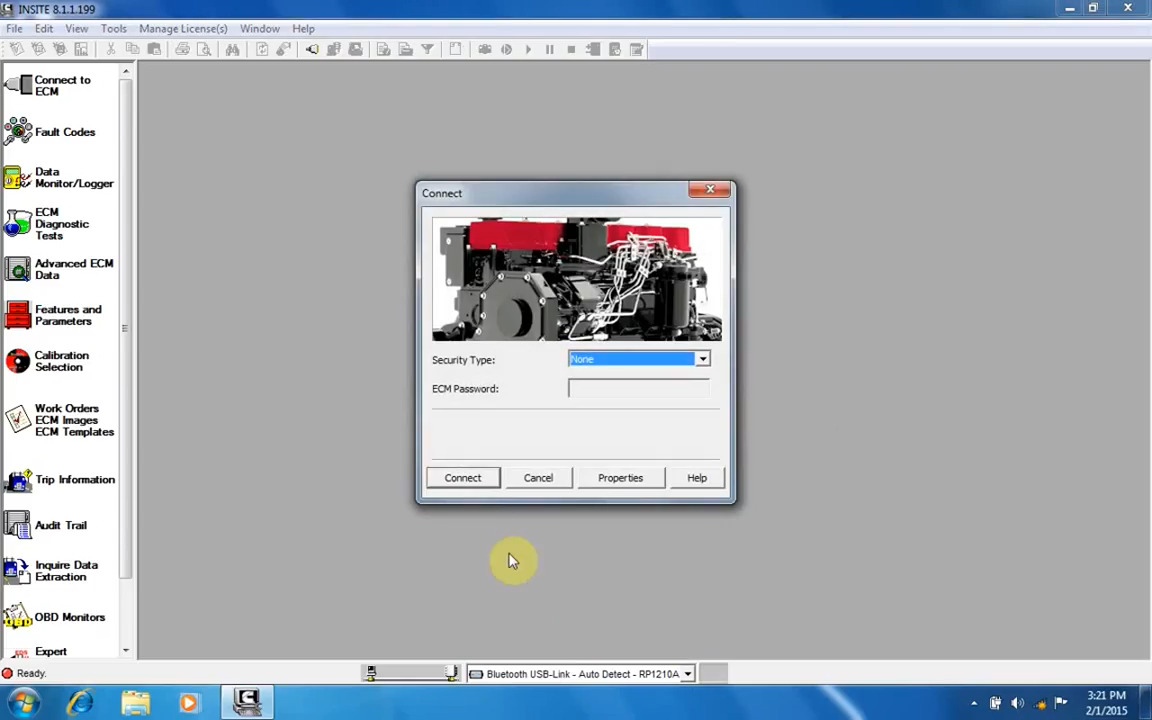
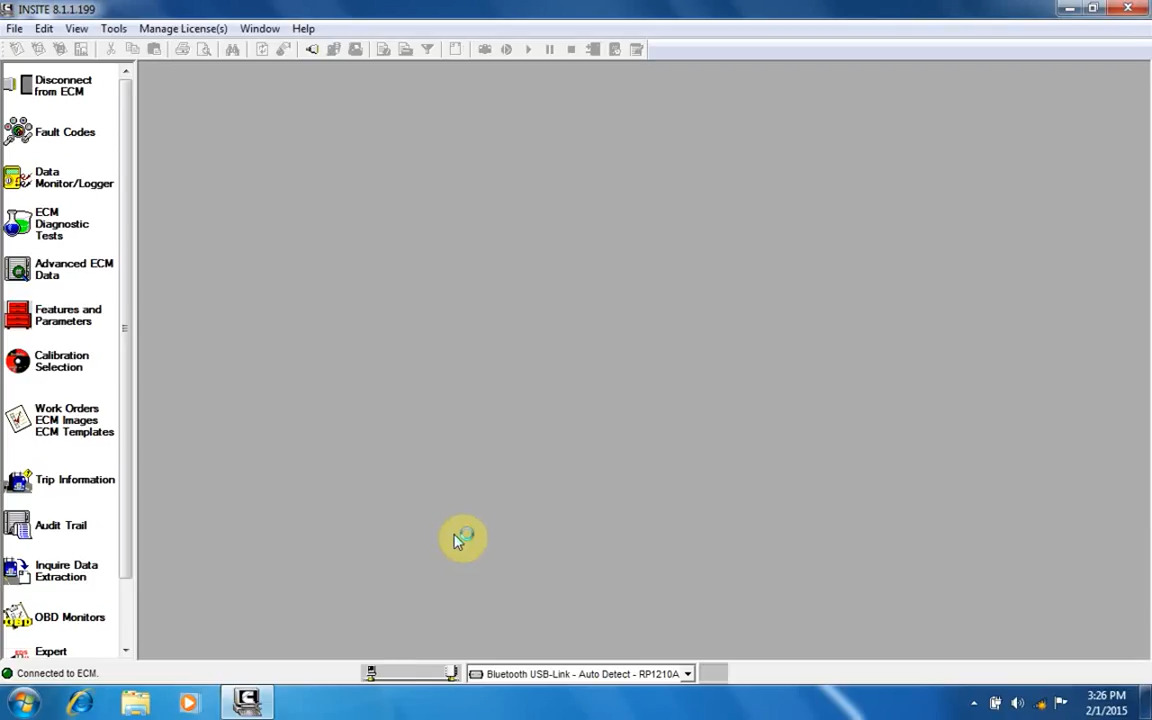
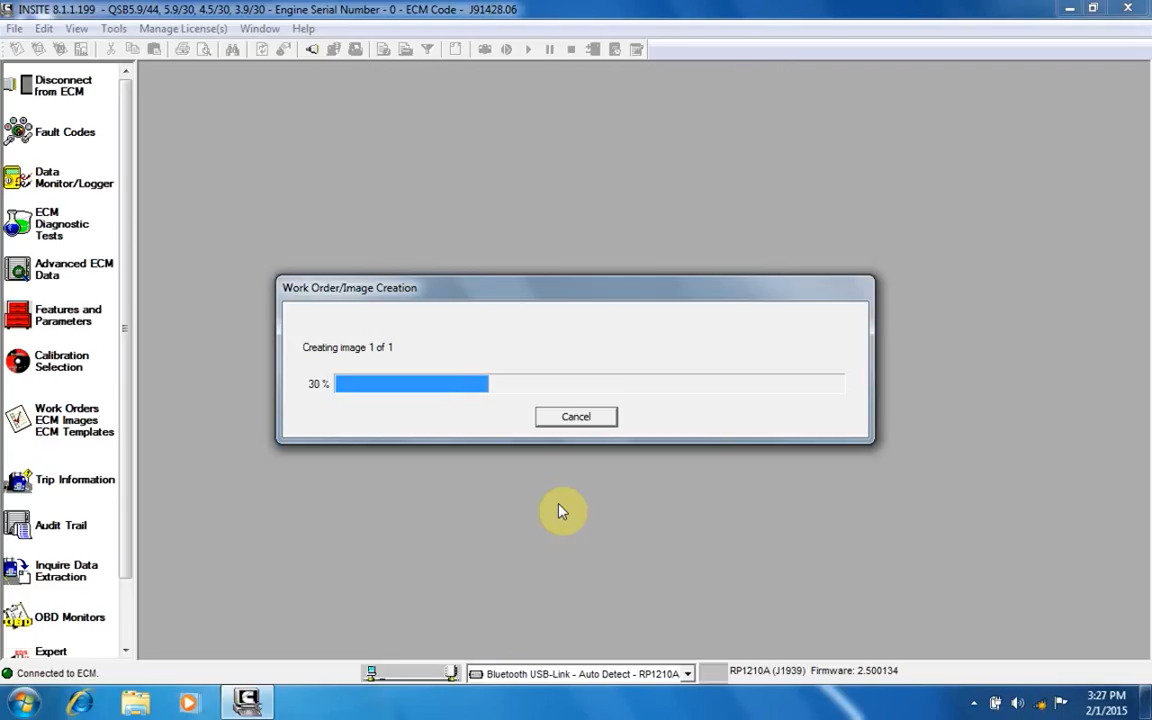
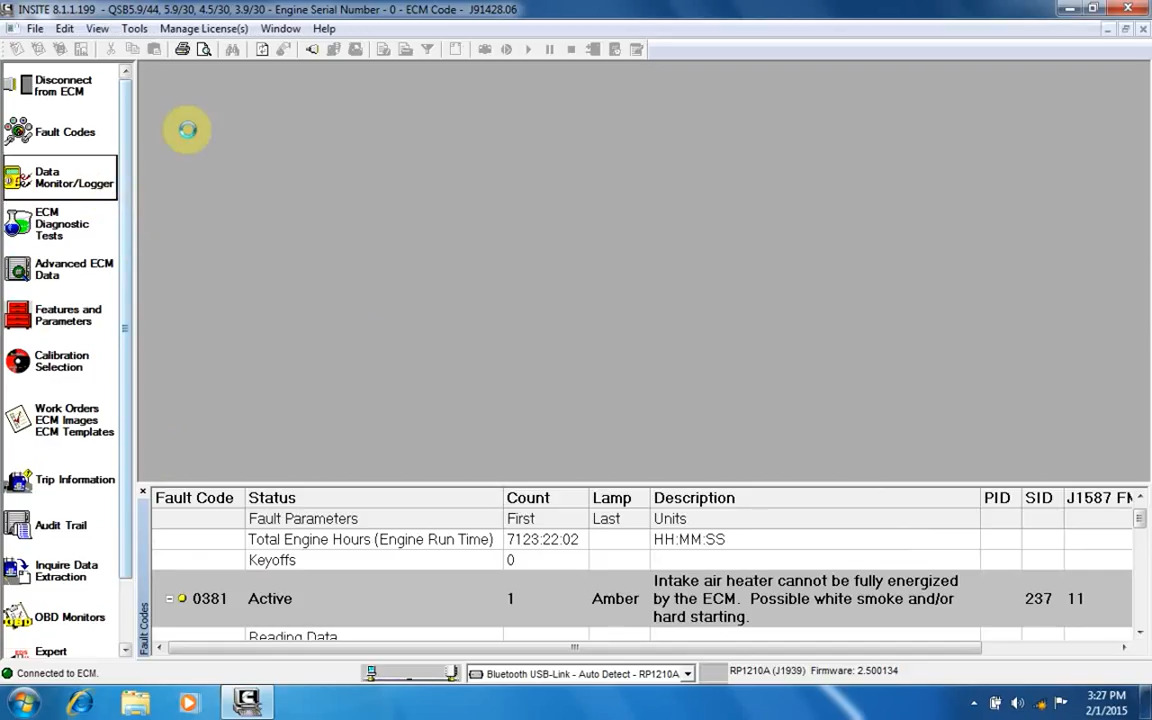
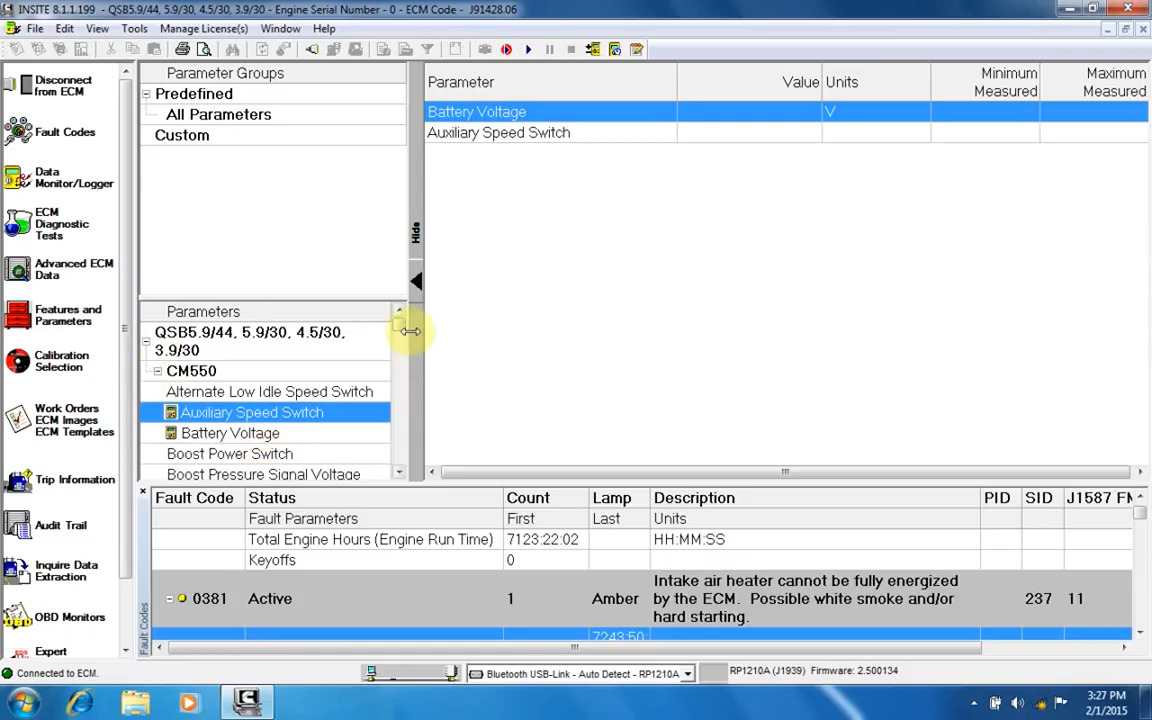
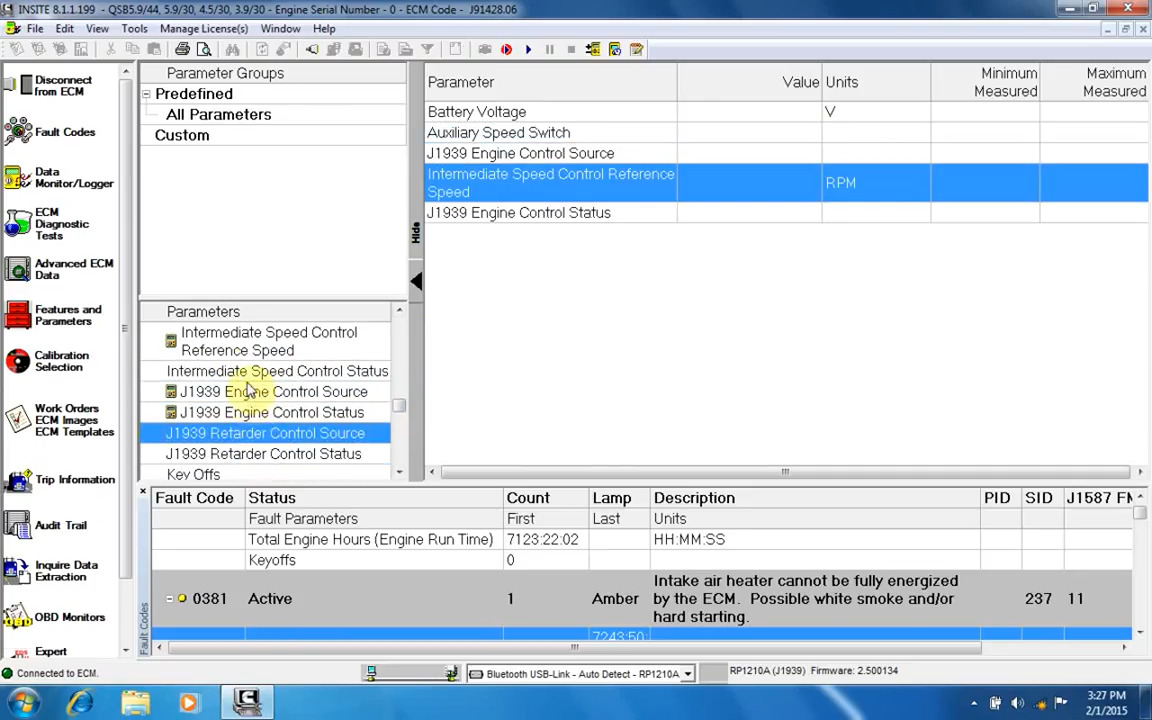
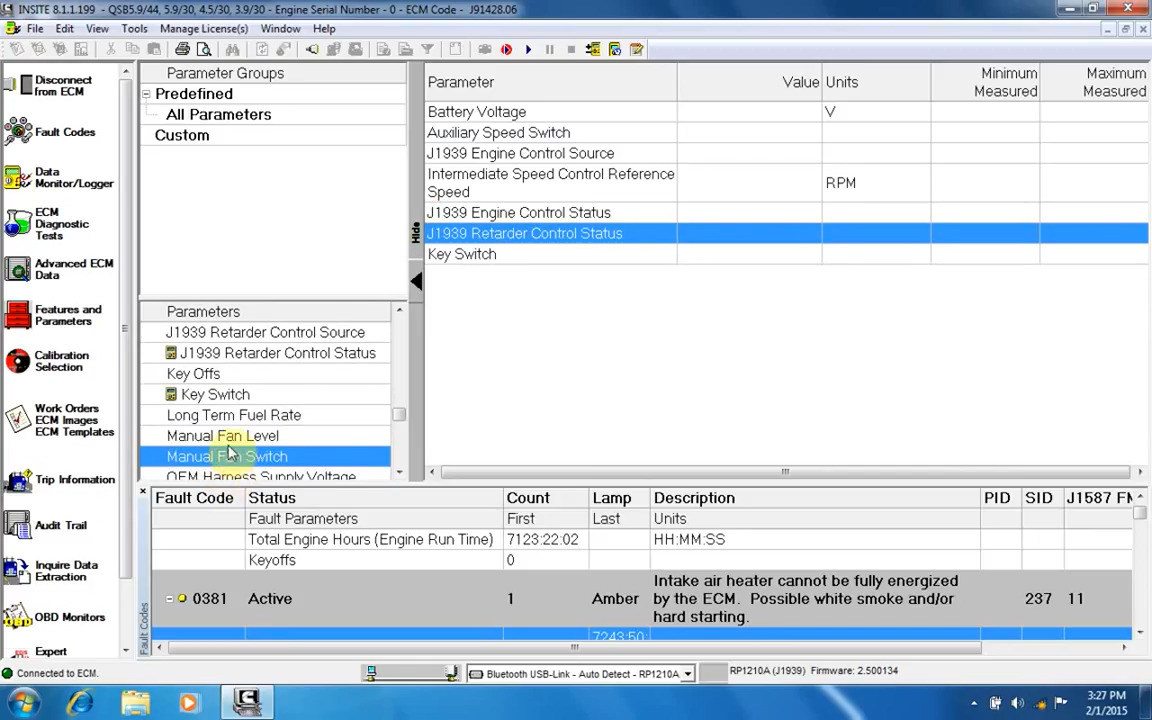
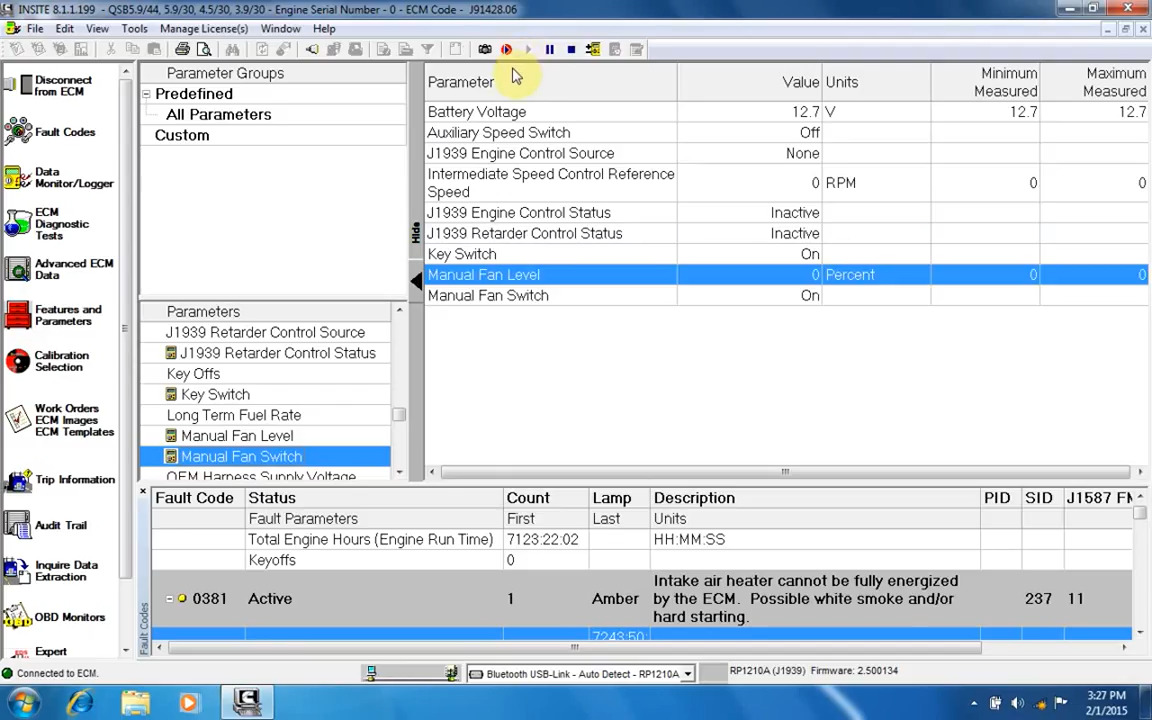
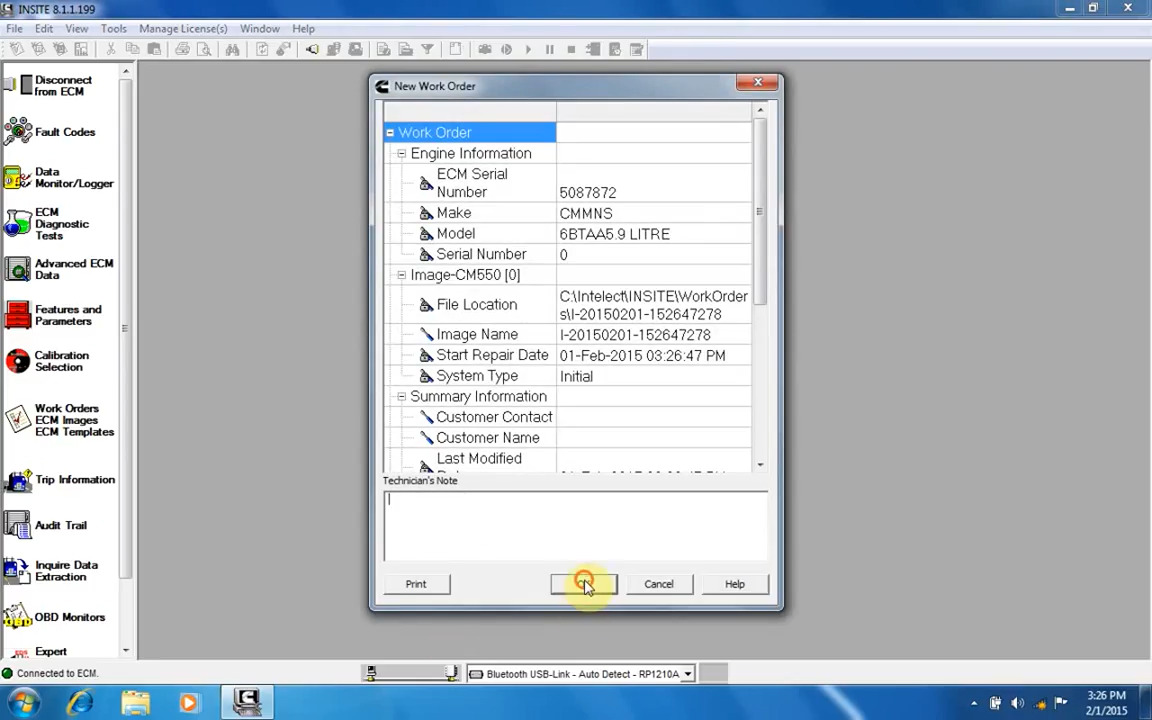
Configurar Cummins Insite con interface Nexiq 2

USB-Link 2 Vehicle Interface Bluetooth Edition PN 124032
The USB-Link 2 is the best in available vehicle interfaces, and we ship it daily around the world. It is a rugged and dependable interface is five time faster than its predecessor with sixteen more times more random-access memory that the old USB-Link.

Cummins Insite Engine Diagnostic Software Pro

Cummins INSITE version 8 is a PC-based software application that provides quick and easy access to your engine’s electronic performance information. This enables faster service turnaround times. INSITE helps ensure accurate diagnoses and limits downtime while increasing productivity and profits.

Cummins INSITE software supplies engine information quickly, getting the inside details you need. No matter what kind of equipment you run, INSITE is the one support product to have in your virtual toolbox to fit every Cummins electronic engine.

Cummins INSITE Features:
•Trip and vehicle information
• Parameter and feature adjustment
• Complete wiring diagrams and sensor location maps
• Fault-related information
• Fault code and symptom-based diagnostics
• Engine diagnostic tests (Injector cut-out, EGR valve, turbo, etc…)
• Tools to create templates for a group of vehicles
• Audit trail information
• Enhanced Electronic Control Module (ECM) security
• Work orders
• Built-in help & troubleshooting
• Calibration downloads
• Graphical monitoring

USB-Link 2 Vehicle Interface Bluetooth Edition PN 124032
The USB-Link 2 is the best in available vehicle interfaces, and we ship it daily around the world. It is a rugged and dependable interface is five time faster than its predecessor with sixteen more times more random-access memory that the old USB-Link.

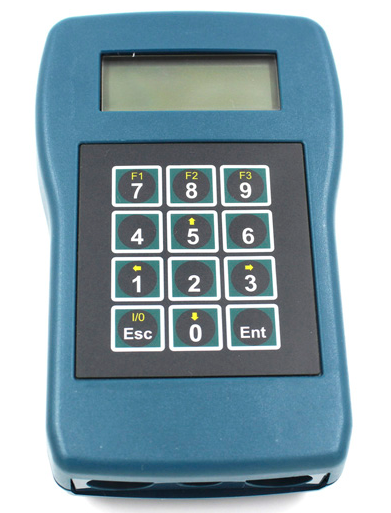
Tachograph Programmer CD400

TACHOGRAPH PROGRAMMER  CD400 for Truck speedometer and odometer mileage correction kit

Product Description

CD400 tachograph programmer is designed for programming and maintenance of tachographs made by various manufacturers. It comes with a full set of necessary cables for direct connection to supported tachograph devices. CD400 tachograph programmer is easy to use, it has display and intuitive menu (available interface languages: English, Deutsch, Espanol, Francais, Nederlands, Portuguese, Turkish, Romanian, Russian) for parameter or operation selection, also it has keyboard for input of parameters and controls. CD400 tachograph programmer can be upgraded through internet connection. There is no need for additional power source, CD400 will be powered by tachograph (except K13xx/1318 and FTCO1319). Just connect programmer to supported tachograph with compatible cable and you’re ready to go. This device allows you to execute a lot of functions and change various parameters (even odometer programming), some functions doesn’t requires workshop card.

CD400 can measures and records the speed and distance driven by a vehicle. The data are recorded in the form of graphics on a paper disk.
The new digital tachographs record those data on its embedded memory and also on the smartcard of the driver.The Tachograph programmer CD400 calibrates and programs all analogue and digital tachographs.

Supported Tachographs:

Analogs: KTCO 1314/1318, Motometer EGK100, FTCO 1319, MTCO 1324/1390, TSU 1391, VR2400.
Digitals: DTCO 1381 (DTCO® 2.1 active), SE5000 (Exakt Duo), SmarTach, EFAS-4.
A Workshop Card is required to calibrate the digital tachographs

Tachograph Programmer CD400 Functions

W figure determination on measuring track (with optional photo-cell) or rolling road.
K figure measure on KTCO 1314, KTCO 1318 and FTCO1319.
Parameter programming.
Activation and deactivation of IMS (Independent Motion Signal).
Activation and deactivation of VDO counter.
Odometer reset and adjustment (mileage correction).
Speed simulation and customizable automatic test diagram.
DTCS reading (Digital) and erasing.
Sensor pairing (KITAS activation).
Clock test.
Workshop card’s PIN recording and input through CD400.

Tachograph Programmer CD400 Technical Specifications:

Graphic FSTF LCD Display: (100 x 32 pix. / 4 lines x 20 char)
White LED backlight
Size: 150 x 100 x 45 mm
Supply voltage: 9 to 30 VDC
Supply current: 12mA
Case: green-blue ABS (IP40).
Operating temp: -20…+70°C
Weight: 155g

Package Including
1pc x CD400 – tacho programmer
1pc x Cable for 1319
1pc x Cable for 13ХХ/1318, V.Root 8400
1pc x Cable for EGK-100
1pc x Cable for 1324
1pc x Cable for V.Root 2400
1pc x Cable for CA-RS232-1
1pc x Cable for digital tacho
1pc x Manual

FREE Caterpillar ET-2018C Full Service Dealer, Diagnostic Software for Caterpillar Engines

FREE Setting CAT ET-2018C (CAT Caterpillar ET) Full Service Dealer, Diagnostic Software for Caterpillar Engine ET 2018C, for Windows 7 & 10.
Feel FREE to Contact Us
If you got problems while activation, I’ll help using TeamViewer, download here: TeamViewer_Setup

Instructions:
-Install Software CAT ET2018C, FREE download here: CAT ET2018C download
-Install Patch Installer Files (x86 or x64), download here:
2018C x64 Patch Installer.exe
2018C x86 Patch Installer.exe
-Open and get HWID From “0-HWID.exe”, download here: 0-HWID.exe
Copy and save to Notepad, then send to my email.
-I’ll help to create “keygen.key” + “activation.key”, to activate the CAT ET2018C
-Install license.zip to C:\Program Files (or Program Files x86)\Common Files\Offboard Information Products\2018C\Comet, download here: License.zip
-Install set SET Environment Variables, download here: SET Environment Variables.zip
-Copy and Paste folder “FlexLM” on “Comet” folder to drive C.

How to Use Autel IM608 Generic OBD II Function?

Autel MaxiIM 608,A fast-access option for OBD II/EOBD vehicle diagnosis is available on the Vehicle Menu screen. This option presents a quick way to check for DTCs,isolate the cause of an illuminated malfunction indicator lamp (MIL), check monitor status prior to emissions certification testing, verify repairs, and perform a number of other services that are emissions-related. The OBD direct access option is also used for testing OBD II/EOBD compliant vehicles that are not included in the Diagnostics database.

Functions of the diagnostics toolbar buttons at the top of the screen are the same as those available for specific vehicle diagnostics.

Autel IM608 General Procedure
To access the OBD II/EOBD diagnostics functions
1. Tap the Diagnostics application button from the MaxiIM Job Menu.
The Vehicle Menu displays.
2. Tap the EOBD button. There are two options to establish communication with the vehicle.

Auto Scan – when this option is selected the diagnostic tool attempts to establish communication using each protocol in order to determine which one the vehicle is broadcasting on.Protocol – when this option is selected the screen opens a submenu of various protocols. A communication protocol is a standardized way of data communication between an ECM and a diagnostic tool. Global OBD may use several different communication protocols.
3. Select a specific protocol under the Protocol option. Wait for the OBD II Diagnostic Menu to appear.

NOTE
Tapping the button displayed beside the function name opens a bubble with additional function information.

4. Select a function option to continue.
DTC & FFD
I/M Readiness
Live Data
On-Board Monitor
Component Test
Vehicle Information
Vehicle Status

How to setup MB SD Connect C4 Xentry for Mercedes BUS diagnosis

cars and trucks working ok, so i bet it’s working Xenry; but cannot do buses or other heavy equipment MB SD Connect C4 .I only have this problem with Buses –>”licence incorrect”.

in Xentry this Licence Error Message (sorry, screenshot is in German; i have translated it into English).

sdconnect-xentry-mercedes-bus-error

Fahrzeug: CC400.121

HINWEISE

Hinweis:

Lizenz ist fehlerhaft

(Vehicle type: CC400.121

HINTS

Note:

License is incorrect)

The solution for me….

MB Star Diagnostic Tools DAS License.0 Fix download on Mega

https://mega.nz/#!6ckAmDgQ!AbVNk4zFGtE38tCgdYPc_pXZDM3EbABeRoSmRl06Ww0 (BIG THANKS to DieTrih solution)

with DAS.Standalone for Xentry.OpenShell.XDOS and DAS.Xentry (2017.12)
DAS v7.7.0.1
Use it with old keys for DAS.
MB Bus and Bharatbenz are working.
Included: das32r2.exe (Usual file), das32r2_sl.exe (Standalone), lic.sli (Original file if needed).
Don`t look on the file size, just packed executable.

mustang’s review: (BIG THANLS)

I confirm that DieTrih solution works perfect.
I used windows xp and windows 7.
all in 32 bits.
xentry das versions from 2015.5 until 2017.12
everything is working fine…also in bus
Cheers

https://www.autonumen.com/goods-335-MB+SD+Connect+Compact+4+Star+Diagnosis+Tool+Plus+Dell+D630+Laptop+Latest+Version.html

http://cardiagnostic.us/2021/01/06/how-to-setup-mb-sd-connect-c4-xentry-for-mercedes-bus-diagnosis/

2019V JPRO Professional Heavy Truck Diagnostic Tool INSTALL INSTRUCTIONS

2019V JPRO Professional Heavy Truck Diagnostic Tool INSTALL INSTRUCTIONS

JPRO Professional Software Installation video:

1. Run JProsetup2019 v1

2. Run HWID As ADMINISTRATOR and get “hwid.dat” (DO NOT CLOSE)

3. Use keygen and take license files (CLOSE HWID STEP2)

4. License files include in jproCVD.dat & lic.dat

5. Copy license files and paste in direction “C:ProgramDataNoregonJPRO Fleets”

6. Run Software + Close

7. Run Firewall Rules as Admin rights

8. Block JPro and don’t connect it with Internet. “127.0.0.1 jpro.noregon.com”

通过 WordPress.com 设计一个这样的站点
从这里开始